
How to Use Aesthetic Bio Maker for Stylish Bios 2026
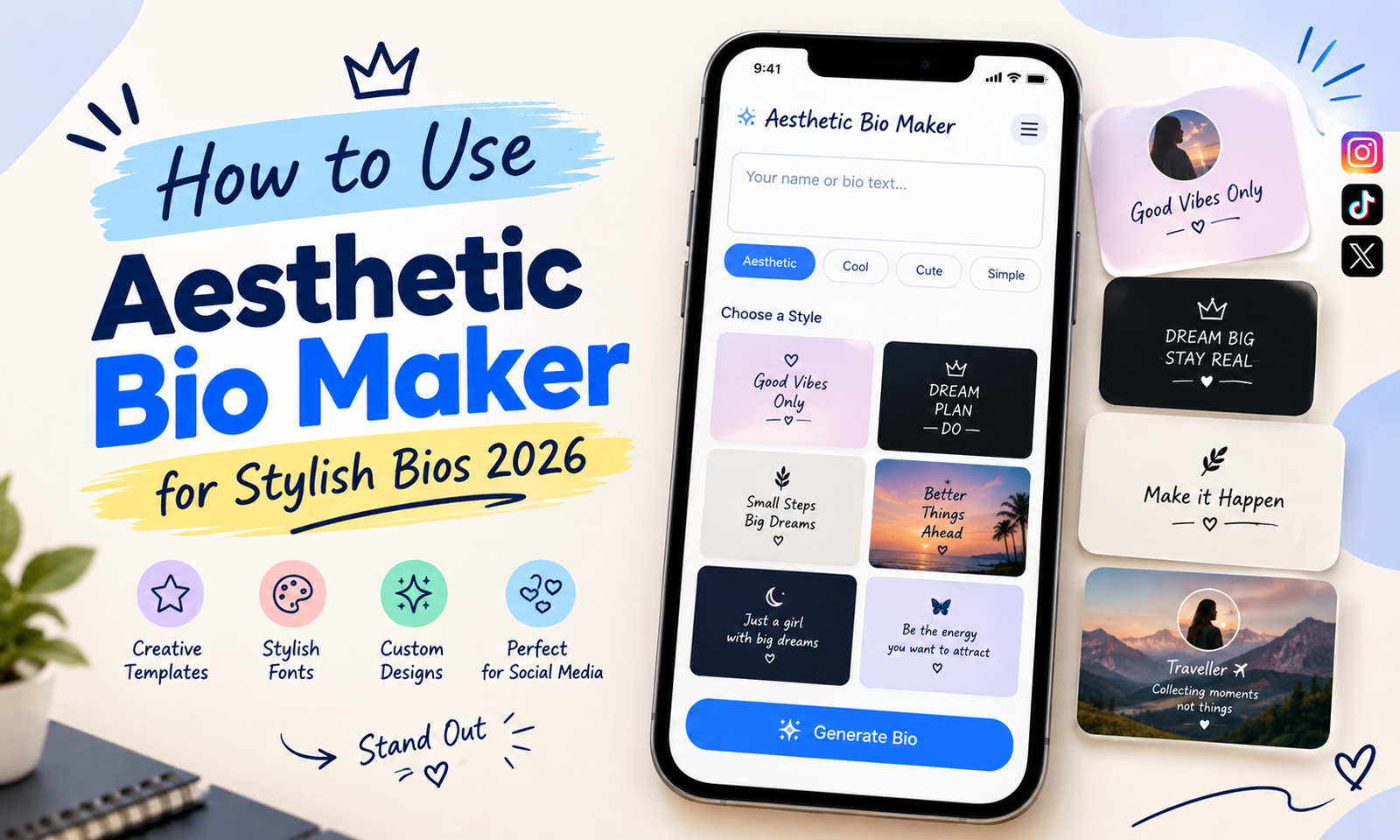
This Aesthetic Bio Maker helps you to create a stylish bio for your social media profiles. You can only enter your own text, choose a font, select a bio style, add symbols or emojis, and preview the final result. Once your bio looks aesthetic, you can copy it and paste it to your social media profile.
You can use an aesthetic bios on these platforms such as Instagram, TikTok, Discord, and Roblox. This tool combines Unicode text, decorative characters, fonts, symbols, emojis, and different aesthetic styles and you get all these thing in one place.
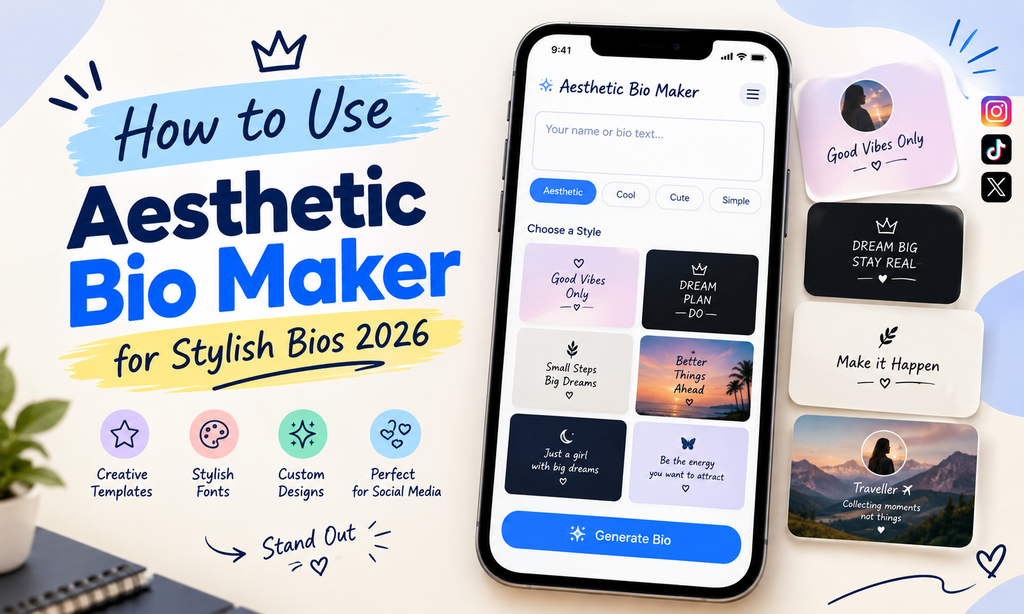
How to Use an Aesthetic Bio Maker Tool
Using an aesthetic bio maker is a easy. You can start with your own text and then change its using the available fonts, templates, symbols, and decorations. You can preview the result before copying it to your social media profile.
Enter Your Bio Text
Enter your text. This can be your name, interests, hobbies, a short quote, mood, status, or any other information you want to show on your profile.
For example, you could enter:
Choose an Aesthetic Font
Choose a font style that suits your look. Aesthetic Bio Maker offers serif, script, gothic, sans, bubble, glitch, and other Unicode styles. Try all these options and pick one that looks good and your text easy to read.
Select an Aesthetic Style
Choose an aesthetic bio style that matches your profile. Options include Cute, Dark, Minimal, Soft, Korean, Y2K, Coquette, Cottagecore, Grunge, and Dark Academia. Pick one style which is related to your personality and always remember clean and easy to read bio always look aesthtic.
Add Symbols and Emojis
Add symbols and emojis that make your bio look more attractive and unique. You can use hearts, stars, bows, flowers, moons, clouds, dividers, and special characters to decorate your text. These symbols can also help you to separate different parts of your bio.
Preview Your Bio
Before copying your bio, check the preview to see how the font, spacing, symbols, and emojis look together. Make sure the text is clear and easy to read. If your bio looks too crowded, remove extra decorations or try a simpler font. You can also choose another template to match your profile style.
How to Create a Better Aesthetic Bio
A good aesthetic bio looks stylish and easy to read. You do not need to use every font or symbol which is available on our website. Choose a simple text and a few decorations that match your style.
Keep the Bio Short
A short bio is easy to read and looks clean. Remove extra words and decorations if your bio starts to look crowded.
Use Fonts Carefully
Fancy fonts make your bio look different, but some styles are harder to read. Use decorative fonts for short phrases and keep important details clear. Always check how your selected Unicode characters appear on your social media profile.
Can You Use an Aesthetic Bio Maker on Mobile?
Yes, you can use an online aesthetic bio maker from a mobile browser. The using process is the same: enter your text, choose a font or aesthetic style, add decorations, preview the result, and copy the finished bio.
Can You Use the Same Bio on Different Platforms?
Yes, you can use the same bio on Instagram, TikTok, Discord, and other platforms. However, some fonts, symbols, and emojis may look different depending on the device or platform. If a character does not display correctly, replace it with a simpler one.
Conclusion
An aesthetic bio maker helps you to create a stylish bio with simple text, fancy fonts, and matching symbols. Choose a readable font, select an aesthetic style, and add a few emojis or decorations. Always check the preview before copying your bio.
If your bio looks different after pasting, try a simpler font or remove unsupported symbols. Keep your text clear and easy to read across different platforms.
Follow these simple steps:
Enter Text → Choose a Font → Select a Style → Add Symbols → Preview → Copy → Paste